Set up the project and objects
In Kanzi to create dynamic shadows you need to use the Shadow Map Composer. These properties of the Shadow Map Composer set the shadows:
- Shadow Depth Default Material sets the material used for rendering the depth from the viewer
- Shadow Map Default Material sets the shadow material used for the objects that have Shadow Receiver Object property and receive the shadows.
- Shadow Map Width and Shadow Map Height set the resolution of the shadow map.
For the Shadow Map Composer to work you need a camera that simulates a light source, use the Shadow Receiver Object property on objects that receive shadows, and Shadow Casting Object property on objects that cast shadows.
In this step you first set up the project for dynamic shadows and then you set up the objects in the project so that they can cast and receive shadows.
Assets for this tutorial
The starting point of this tutorial is the result of the Creating your first application tutorial. See Creating your first application. You can find it in <KanziWorkspace>/Tutorials/Creating your first application/Completed Kanzi Studio project.
Set up the project for dynamic shadows
- Open the Kanzi Studio project located in <KanziWorkspace>/Tutorials/Creating your first application/Completed Kanzi Studio project, or complete the Creating your first application tutorial. See Creating your first application.
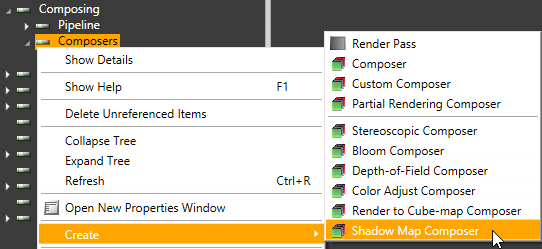
- In the Library right-click Composing > Composers and select Create > Shadow Map Composer.
In the Shadow Map Composer defines the rendering of shadows.
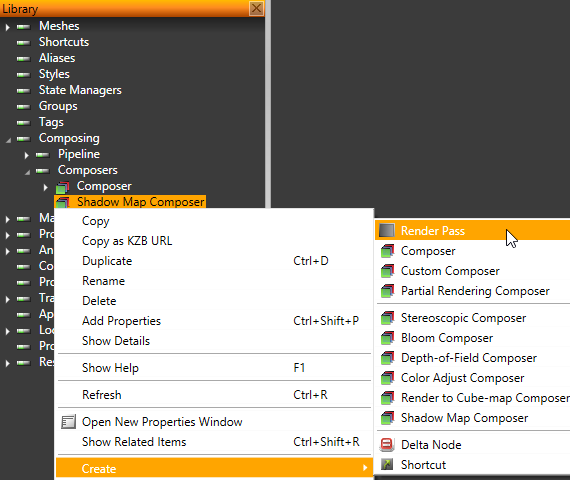
- Right-click the Shadow Map Composer and select Create > Render Pass.
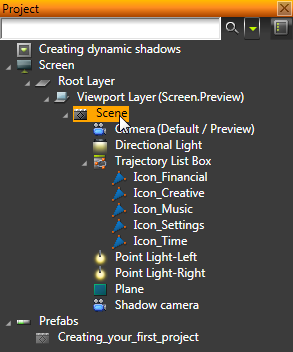
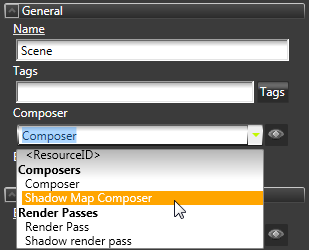
- In the Project select the scene where you want to create dynamic shadows, and in the Properties set the Composer property to the Shadow Map Composer.
Set up the objects that cast shadows
- In the Project select all the objects in the Trajectory List Box.
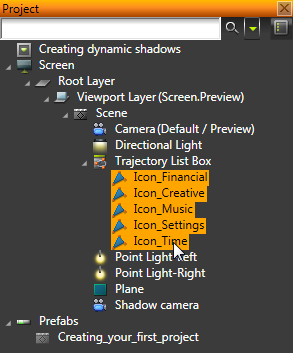
- In the Properties click Add Properties, add the Shadow Casting Object property, and enable it.
By enabling the Shadow Casting Object property you define which objects cast shadows.

Set up the object that receives shadows
- In the Project create an object that receives shadows in the same scene with the objects that cast shadows, and place it underneath the objects that cast shadows.
For example, create a Plane.
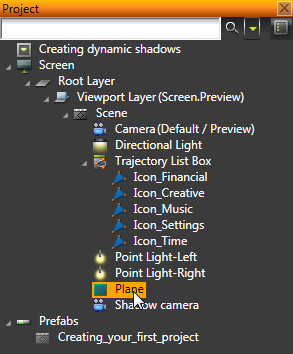
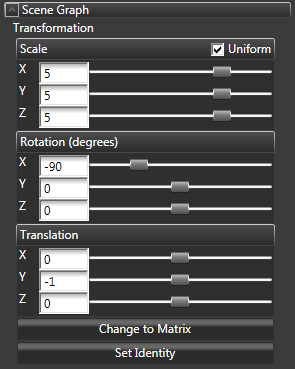
- In the Project select the object that receives shadows, and in the Properties set the Material property to PhongShadowMapMaterial.
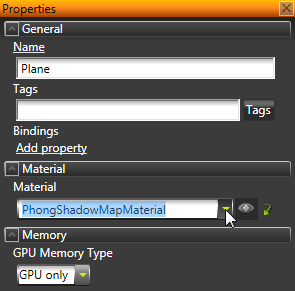
- In the Project select the object that receives shadows, in the Properties click Add Properties, add the Shadow Receiver Object property, and enable it.
The rendering pipeline overrides object materials that have the Shadow Receiver Object property. If you want to use a different shadow material for the object that receives shadows, manually set the shadow mapping material for the object.

< PREVIOUS STEP
NEXT STEP >
See also
To find out more about editing content in the Preview, see Editing in the Preview.
To find out more about composers available in Kanzi Studio, see Composers.
Open topic with navigation